HTML5 Event Calendar (Open-Source)

Downloads
-
TutorialHtml5EventCalendar.20140224.zip 99 kB
Sample HTML5 project with source code. PHP/SQLite backend.
Features
- Weekly HTML5 event calendar
- Pure JavaScript (no third-party libraries required)
- Open source (Apache License 2.0)
- Drag and drop event moving
- Drag and drop event resizing
- CSS themes
- Easy initialization
- Compatible with jQuery (jQuery 1.x, jQuery 2.x)
Sample Project
Frontend:
- HTML5
- JavaScript
- CSS3
Backend:
- PHP
License
The source code of this sample project is licensed under the Apache License 2.0.
Event Calendar Quick Initialization
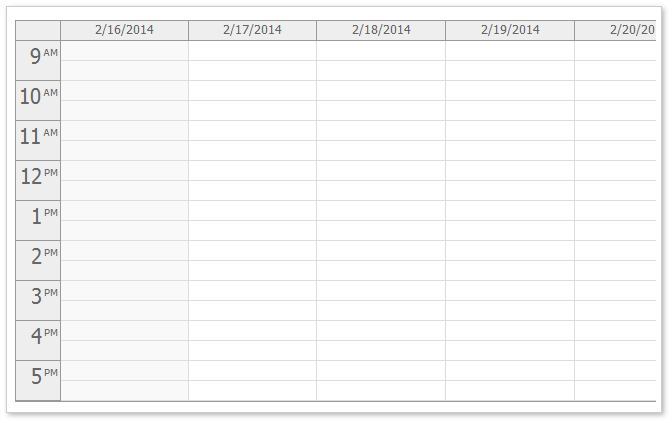
The event calendar requires a placeholder div:
<div id="dp"></div>
Rembmer to include DayPilot Lite JavaScript library (daypilot-all.min.js):
<script src="js/daypilot/daypilot-all.min.js" type="text/javascript"></script>
Use DayPilot.Calendar class to initialize and render the event calendar:
<script type="text/javascript">
  var dp = new DayPilot.Calendar("dp");
  dp.viewType = "Week";
  dp.init();
</script>
Loading Events
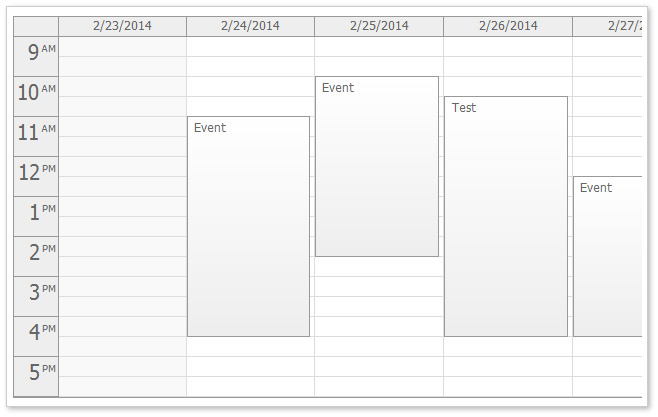
Initial Event Set
The event can be loaded during the initialization:
<script type="text/javascript">
  var dp = new DayPilot.Calendar("dp");
  dp.viewType = "Week";
  dp.events.list = [
  {
    "id":"5",
    "text":"Calendar Event 5",
    "start":"2014-02-25T10:30:00",
    "end":"2014-02-25T16:30:00"
  },
  {
    "id":"6",
    "text":"Calendar Event 6",
    "start":"2014-02-24T09:00:00",
    "end":"2014-02-24T14:30:00"
  },
  {
    "id":"7",
    "text":"Calendar Event 7",
    "start":"2014-02-27T12:00:00",
    "end":"2014-02-27T16:00:00"
  }];
  dp.init();
</script>
Load Calendar Events Asynchronously
You can also load the calendar events later. Fill the .events.list array and call update.
The following example uses jQuery to load the event list from the server and update the event calendar:
function loadEvents() {
  $.post("backend_events.php",
  {
      start: dp.visibleStart().toString(),
      end: dp.visibleEnd().toString()
  },
  function(data) {
      dp.events.list = data;
      dp.update();
  });
}
Sample PHP backend (backend_events.php):
<?php
require_once '_db.php';

$stmt = $db->prepare('SELECT * FROM events WHERE NOT ((end <= :start) OR (start >= :end))');

$stmt->bindParam(':start', $_GET['start']);
$stmt->bindParam(':end', $_GET['end']);

$stmt->execute();
$result = $stmt->fetchAll();

class Event {}
$events = array();

foreach($result as $row) {
  $e = new Event();
  $e->id = $row['id'];
  $e->text = $row['name'];
  $e->start = $row['start'];
  $e->end = $row['end'];
  $events[] = $e;
}

echo json_encode($events);

?>
This sample backend uses a SQLite database with a single table (events).
Database Schema
CREATE TABLE events (
  id INTEGER PRIMARY KEY,
  name TEXT,
  start DATETIME,
  end DATETIME,
  resource VARCHAR(30))
Remember to limit the SQL SELECT using WHERE clause to load the events for the visible range only:
SELECT * FROM events WHERE NOT ((end <= :start) OR (start >= :end))
Adding Individual Events
You can add individual events (DayPilot.Event object) using events.add() method:
var e = new DayPilot.Event({
  start: args.start,
  end: args.end,
  id: DayPilot.guid(),
  resource: args.resource,
  text: name
});
dp.events.add(e);
This method is not suitable for adding large number of events because it updates the calendar during every .events.add() call.
Date Navigator Integration
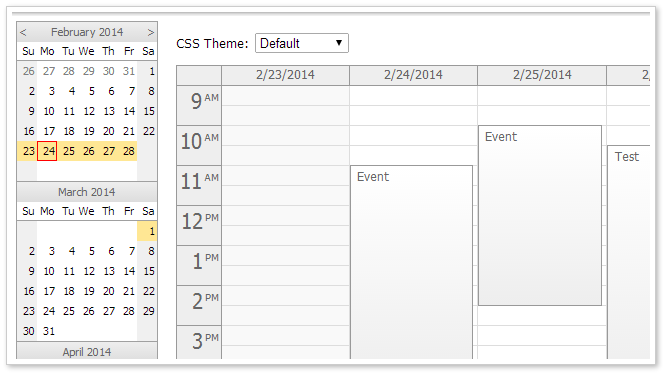
You can add a date navigator widget (on the right) to help changing the visible date week.
First we create two columns using CSS.
- Add the navigator placeholder to the left column (id="nav")
- Add the event calendar placeholder to the right column (id="dp")
<div style="float:left; width: 160px;">
  <div id="nav"></div>
</div>
<div style="margin-left: 160px;">
  <div id="dp"></div>
</div>
Initialize the navigator using DayPilot.Navigator class:
<script type="text/javascript">
  var nav = new DayPilot.Navigator("nav");
  nav.showMonths = 3;
  nav.skipMonths = 3;
  nav.selectMode = "week";
  nav.init();
</script>
Handle the onTimeRangeSelected event of the navigator and change the event calendar .startDate property to change the visible week:
  nav.onTimeRangeSelected = function(args) {
      dp.startDate = args.day;
      dp.update();
      loadEvents();
  };
Event Calendar CSS Themes
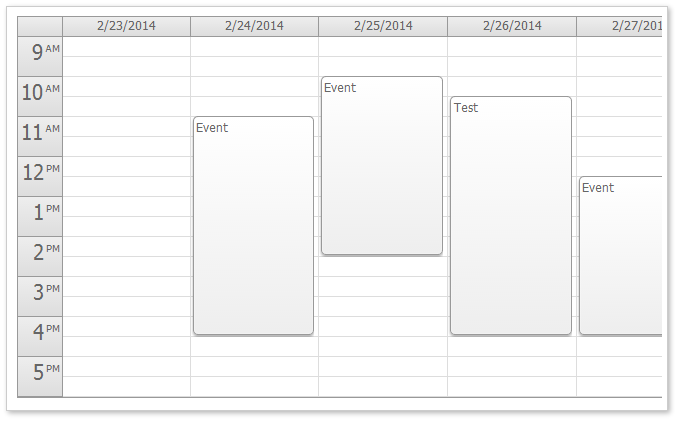
The sample project includes 5 sample CSS themes (Default, Green, Google-Like,
The Default CSS theme is built in. The other themes are defined in standalone css files (e.g. calendar_green.css). You need to include the stylesheet:
<link type="text/css" rel="stylesheet" href="themes/calendar_green.css" />
The following code allows switching the CSS theme on the fly:
<div class="space">CSS Theme:
  <select id="theme">
    <option value="calendar_default">Default</option>
    <option value="calendar_g">Google-Like</option>
    <option value="calendar_green">Green</option>
    <option value="calendar_traditional">Traditional</option>
    <option value="calendar_transparent">Transparent</option>
    <option value="calendar_white">White</option>
  </select>
</div>


<script type="text/javascript">
$(document).ready(function() {
  $("#theme").change(function(e) {
    dp.theme = this.value;
    dp.update();
  });
});
</script>
Default CSS Theme (calendar_default, built in)
Google-Like CSS Theme (calendar_g.css)
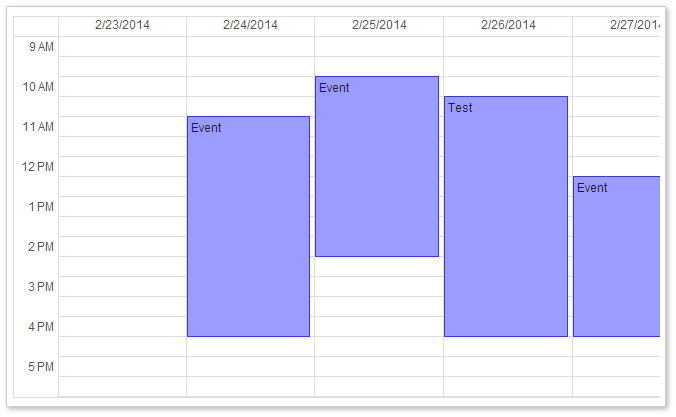
Green CSS Theme (calendar_green.css)

Traditional CSS Theme (calendar_traditional.css)
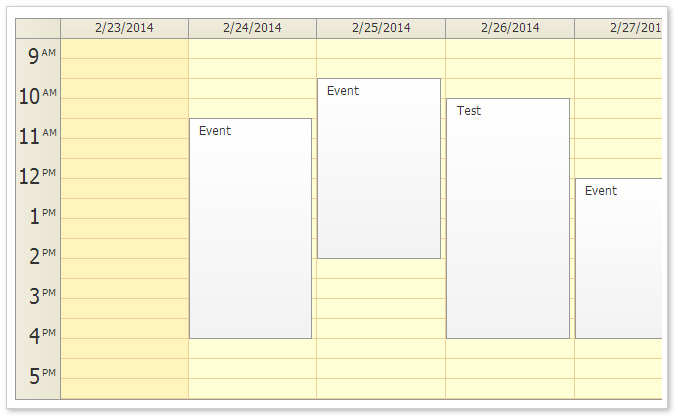
Transparent CSS Theme (calendar_transparent.css)

White CSS Theme (calendar_white.css)
Drag and Drop Event Moving
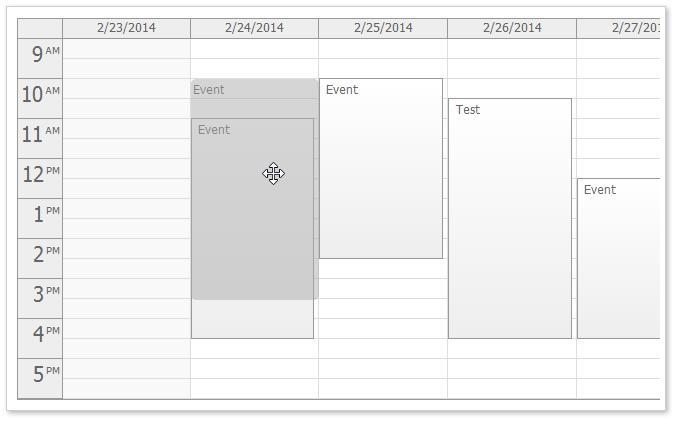
Drag and drop moving of calendar events is enabled by default. The event calendar updates the event position after drop and fires onEventMoved event. You can use this event to update the database using an AJAX call.
JavaScript
dp.onEventMoved = function (args) {
  $.post("backend_move.php",
    {
        id: args.e.id(),
        newStart: args.newStart.toString(),
        newEnd: args.newEnd.toString()
    },
    function() {
        console.log("Moved.");
    });
};
PHP (backend_move.php)
<?php
require_once '_db.php';

$insert = "UPDATE events SET start = :start, end = :end WHERE id = :id";

$stmt = $db->prepare($insert);

$stmt->bindParam(':start', $_POST['newStart']);
$stmt->bindParam(':end', $_POST['newEnd']);
$stmt->bindParam(':id', $_POST['id']);

$stmt->execute();

class Result {}

$response = new Result();
$response->result = 'OK';
$response->message = 'Update successful';

echo json_encode($response);

?>
Drag and Drop Event Resizing
Drag and drop moving of calendar events is enabled by default. The calendar updates the event duration after drop and fires onEventResized event. You can use this event to update the database using an AJAX call.
JavaScript
dp.onEventResized = function (args) {
  $.post("backend_resize.php",
  {
      id: args.e.id(),
      newStart: args.newStart.toString(),
      newEnd: args.newEnd.toString()
  },
  function() {
      console.log("Resized.");
  });
};
PHP
<?php
require_once '_db.php';

$insert = "UPDATE events SET start = :start, end = :end WHERE id = :id";

$stmt = $db->prepare($insert);

$stmt->bindParam(':start', $_POST['newStart']);
$stmt->bindParam(':end', $_POST['newEnd']);
$stmt->bindParam(':id', $_POST['id']);

$stmt->execute();

class Result {}

$response = new Result();
$response->result = 'OK';
$response->message = 'Update successful';

echo json_encode($response);

?>
Drag and Drop Event Creating

New events can be added using .events.add() method.
The event calendar allows drag and drop time range selection. It is enabled by default. The onTimeRangeSelected event is fired as soon as the selecting is finished. You can use this event to add the new event to the calendar and update the database using an AJAX call.
JavaScript
dp.onTimeRangeSelected = function (args) {
  var name = prompt("New event name:", "Event");
  dp.clearSelection();
  if (!name) return;
  var e = new DayPilot.Event({
      start: args.start,
      end: args.end,
      id: DayPilot.guid(),
      resource: args.resource,
      text: name
  });
  dp.events.add(e);

  $.post("backend_create.php",
  {
      start: args.start.toString(),
      end: args.end.toString(),
      name: name
  },
  function() {
      console.log("Created.");
  });

};
PHP
<?php
require_once '_db.php';

$insert = "INSERT INTO events (name, start, end) VALUES (:name, :start, :end)";

$stmt = $db->prepare($insert);

$stmt->bindParam(':start', $_POST['start']);
$stmt->bindParam(':end', $_POST['end']);
$stmt->bindParam(':name', $_POST['name']);

$stmt->execute();

class Result {}

$response = new Result();
$response->result = 'OK';
$response->message = 'Created with id: '.$db->lastInsertId();

echo json_encode($response);

?>